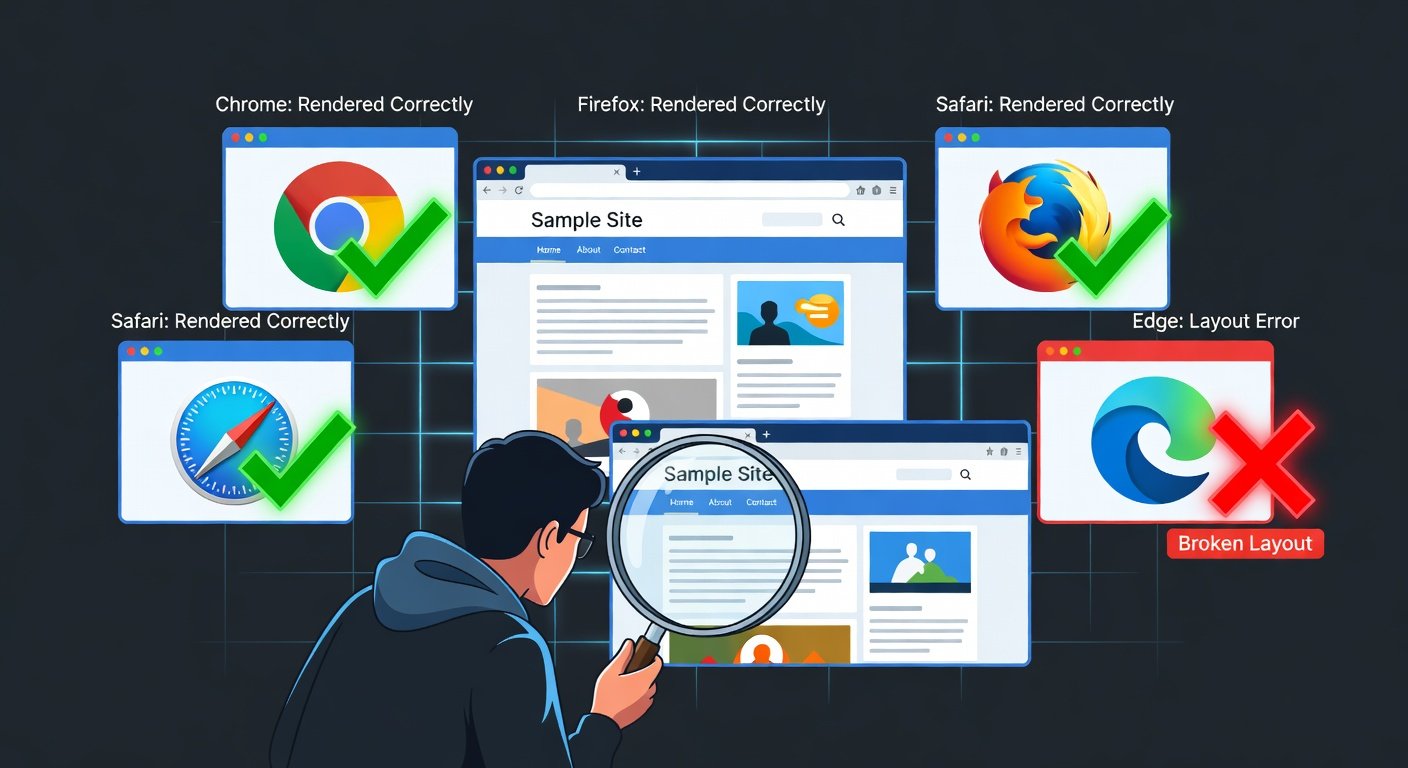
More than 60% of all web traffic now comes from mobile devices. If your website does not look and work great on a smartphone, you are losing the majority of your potential audience. Google also uses mobile-first indexing, meaning it primarily judges your website's quality based on its mobile version. A site that looks bad on mobile ranks worse in search results.
The good news: making a website responsive does not require rebuilding it from scratch. This guide covers the core techniques and common pitfalls in responsive design, with practical examples you can apply today.
First: Set the Viewport Meta Tag
Every responsive website starts with this one HTML tag in the head section of your document: <meta name='viewport' content='width=device-width, initial-scale=1.0'>. Without this tag, mobile browsers will render your site as if it were a desktop browser and then zoom out to fit it on screen — making everything tiny and unreadable. This tag tells the browser to use the device's actual width and set a 1:1 zoom scale. If you only do one thing from this entire guide, do this.
Understand CSS Media Queries
Media queries are the foundation of responsive design. They let you apply different CSS rules based on the device's screen size. The syntax is: @media (max-width: 768px) { ... } — any CSS inside those curly braces will only apply when the screen is 768px wide or narrower. Common breakpoints used in professional development are 480px (phones in portrait), 768px (tablets), 1024px (small laptops), and 1280px (desktops). Rather than memorizing breakpoints, use your browser's Developer Tools to resize the window and add breakpoints wherever your layout actually starts to break.
Mobile-First vs Desktop-First Approach
Desktop-First (Traditional)
You design the desktop layout first, then use max-width media queries to override styles as the screen gets smaller. This is how most websites were built before mobile dominance. The downside is that mobile styles often end up fighting against a lot of desktop CSS, leading to bloated and complex stylesheets.
Mobile-First (Recommended)
You write CSS for the smallest screens first, then use min-width media queries to progressively enhance the layout as the screen gets larger. This approach typically results in cleaner, leaner CSS and forces you to prioritize content. Start with a single-column layout for mobile and progressively add complexity for larger screens. Google officially recommends this approach.
Flexible Layouts with Flexbox and Grid
Fixed-width layouts break on mobile. Instead, use relative units and flexible layout systems. Replace fixed pixel widths with percentages or fr units. Use Flexbox's flex-wrap property so items naturally flow to new rows on small screens. Use CSS Grid with auto-fill and minmax to create naturally responsive grid layouts. For example: grid-template-columns: repeat(auto-fill, minmax(280px, 1fr)) creates a grid that automatically goes from three columns on desktop to one column on mobile with zero media queries needed.
Responsive Typography
Text that is readable on desktop often becomes too small or too large on mobile. Use rem units (relative to root font size) instead of fixed px values for font sizes. A good starting default is 16px for body text. Use the CSS clamp() function for fluid typography that scales smoothly between screen sizes: font-size: clamp(1rem, 2.5vw, 1.5rem) sets a minimum of 1rem, a maximum of 1.5rem, and scales fluidly in between. Ensure your line length (measure) stays between 45–75 characters per line on all screen sizes for maximum readability.
Responsive Images
The max-width Rule
The simplest responsive image rule: add max-width: 100% and height: auto to all images. This prevents images from ever overflowing their container while maintaining aspect ratio. It is two lines of CSS that every website needs.
The srcset Attribute
Instead of serving a 2000px wide image to a mobile phone that only needs 400px, use the srcset attribute to provide multiple image sizes. The browser then automatically downloads the most appropriate size for the current device. This can dramatically reduce data usage for mobile visitors.
Lazy Loading
Add loading='lazy' to images that are below the fold. This is a native HTML attribute that tells the browser to only download the image when the user scrolls near it, improving initial page load time significantly.
Common Mobile UX Problems to Fix
Touch targets too small: Buttons and links should be at least 44x44px to be comfortably tappable with a finger. Tiny buttons designed for mouse clicks are frustrating on touch screens. Horizontal scrolling: No element should be wider than the viewport. Use overflow-x: hidden on the body as a safety measure, and audit your page with DevTools for overflowing elements. Fonts too small: Never use font sizes below 16px for body text on mobile. Small fonts force users to pinch-zoom, which is a terrible experience. Popups and overlays that cover the whole screen on mobile trigger a Google ranking penalty and are almost always dismissed immediately by users.
How to Test Your Responsive Design
Chrome DevTools Device Mode (F12 → toggle device toolbar icon) lets you simulate any phone or tablet. Test with at least iPhone SE (small), iPhone 14 (standard), iPad, and a desktop size. Use Google's Mobile-Friendly Test at search.google.com/test/mobile-friendly to see exactly how Google sees your site. Test on a real phone — DevTools simulation is good but not perfect. PageSpeed Insights also shows mobile-specific performance scores.
Quick Responsive Design Checklist
Viewport meta tag is set. No horizontal scrolling on any screen size. Text is readable without zooming (minimum 16px body font). All touch targets are at least 44x44px. Images use max-width: 100% and height: auto. Navigation collapses into a hamburger menu or similar on small screens. Forms and inputs are usable on touch devices. Page loads fast on mobile (under 3 seconds on 4G).
Conclusion
Making a website mobile-friendly is one of the highest-impact improvements you can make for both user experience and search rankings. Start with the viewport meta tag, adopt a mobile-first mindset, use flexible layouts and typography, and thoroughly test on real devices. Your mobile users — who now make up the majority of your audience — will have a dramatically better experience, and your Google rankings will reflect it.
Learn More: