You set up a REST API call in your code, test it, and nothing works. The response is empty, or you get a cryptic error code, or data that makes no sense. API debugging can feel like shouting into a void — you get a number back (like 401 or 500) and have no idea what to actually do about it.
This guide demystifies the most common API integration errors. We will cover what each error status code actually means, the tools you should use to debug API calls, and the specific fix for each common problem.
Your First API Debugging Tool: The Network Tab
Open Chrome DevTools (F12) and click the Network tab. Every network request your page makes appears here. Find your API call (filter by XHR or Fetch), click on it, and inspect the Headers, Payload, and Response sections. The Response section shows exactly what the server returned. The Headers section shows the status code. The Payload shows what your code sent to the server. This is your primary debugging window for any API issue.
Use Postman for Isolated API Testing
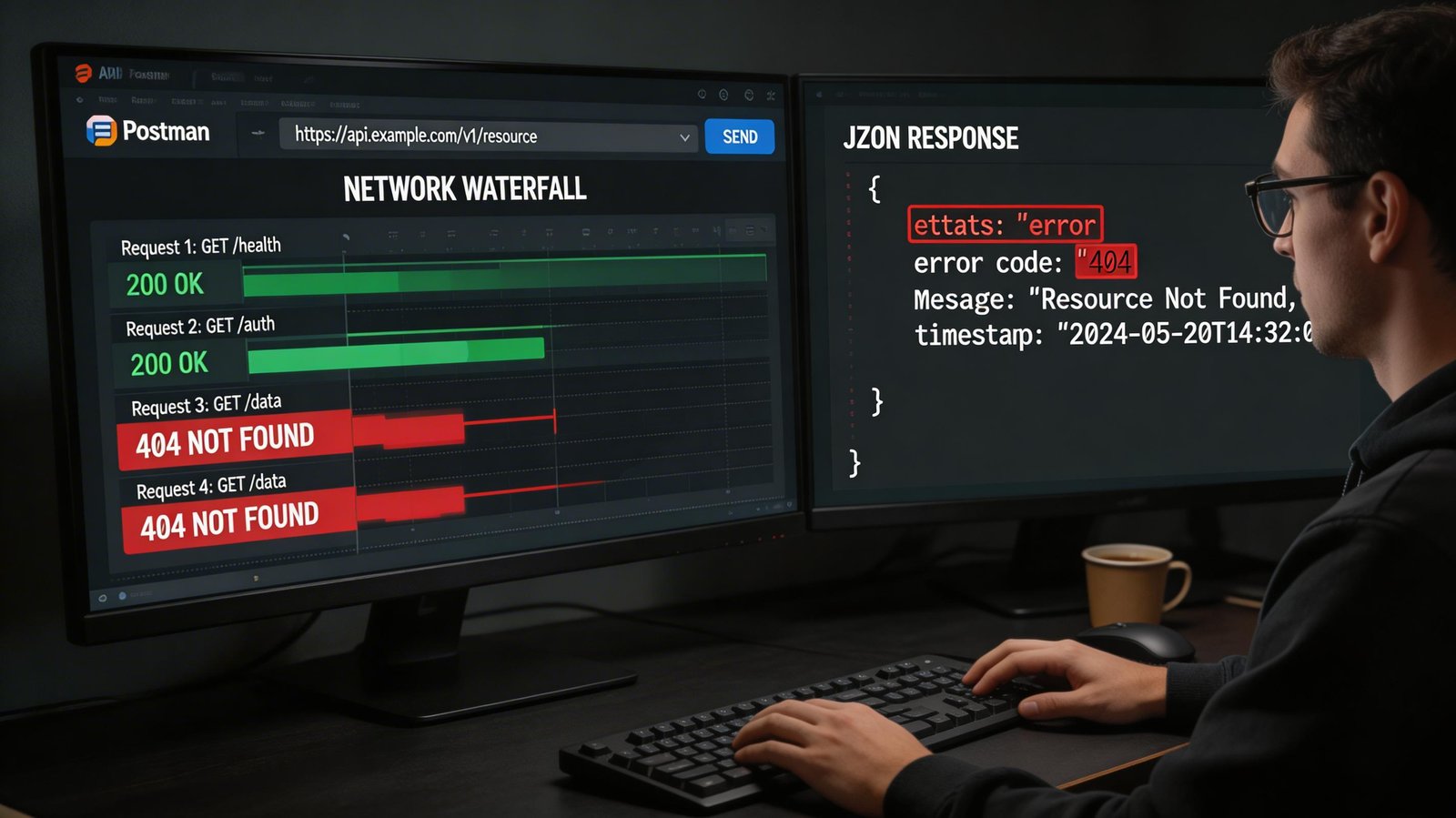
Postman is a free application that lets you make API calls without any browser or frontend code involved. When you are not sure if a problem is in your code or in the API itself, test the same endpoint in Postman. If Postman returns a successful response with the same headers and body you are using in code, the problem is in your code. If Postman also fails, the problem is with the API endpoint or your authentication.
HTTP Status Codes: What They Mean
2xx — Success
200 OK means the request succeeded and a response body is included. 201 Created means a resource was successfully created (common response to POST requests). 204 No Content means success but there is no response body — this is correct behavior for DELETE requests and some updates.
4xx — Client Errors (Your Code or Configuration Is Wrong)
400 Bad Request means the server cannot understand your request — usually a malformed request body or missing required field. 401 Unauthorized means you are not authenticated — no API key, wrong API key, or expired token. 403 Forbidden means you are authenticated but do not have permission to access this resource. 404 Not Found means the endpoint URL does not exist — check for typos in the URL. 422 Unprocessable Entity means the request structure is valid but the content fails validation — often returned when required fields are missing or data types are wrong. 429 Too Many Requests means you have exceeded the API's rate limit — you need to implement request throttling.
5xx — Server Errors (The API Server Has a Problem)
500 Internal Server Error means something went wrong on the API server. This is usually not your fault — check the API's status page. 502 Bad Gateway means the API server received an invalid response from an upstream service. 503 Service Unavailable means the server is temporarily down or overloaded — retry after a delay. 504 Gateway Timeout means the request took too long — the server is overloaded or your request is too complex.
Fix: 401 Unauthorized
Check that your API key or token is included correctly. Most APIs expect it as a header: Authorization: Bearer YOUR_TOKEN or as a query parameter: ?api_key=YOUR_KEY. Verify the exact format in the API documentation. Check that the key has not expired. Some APIs issue short-lived access tokens (like OAuth 2.0 access tokens that expire in 1 hour) — you may need to implement a token refresh flow. Ensure the API key has the necessary permissions for the endpoint you are calling.
Fix: CORS Error
CORS (Cross-Origin Resource Sharing) errors happen when your frontend code running on one domain tries to call an API on a different domain, and the API server has not explicitly allowed this. The error appears in the console as 'Access to fetch blocked by CORS policy.' The fix is a server-side configuration change — the API server must add the Access-Control-Allow-Origin header to its responses. If you control the API server (Node.js/Express), add the CORS middleware: npm install cors, then app.use(cors()). If you do not control the server, you may need to proxy the request through your own backend server, which is not subject to browser CORS restrictions.
Fix: 400 Bad Request
Log the exact request body you are sending: console.log(JSON.stringify(requestBody)). Compare it carefully with the API documentation's example request. Common causes: wrong field names (case-sensitive), missing required fields, wrong data types (sending a string where a number is expected), or invalid JSON format. Use Postman to test with the exact same payload — it shows you exactly what gets sent.
Fix: 404 Not Found
Check the base URL. Double-check every part of the endpoint path. If the API uses versioning, ensure you are using the correct version in the URL (e.g., /v2/users vs /v1/users). Some APIs have different base URLs for sandbox versus production environments — verify you are using the right one. URL-encode any special characters in path parameters.
Fix: 429 Too Many Requests
Most APIs enforce rate limits (e.g., 100 requests per minute). Implement exponential backoff — when you receive a 429, wait before retrying, and increase the wait time with each subsequent failure. Check the response headers — many APIs include Retry-After or X-RateLimit-Reset headers telling you when you can try again. Cache API responses locally when the data does not change frequently to reduce the number of requests you need to make.
Handling API Errors Properly in Your Code
Never assume an API call will succeed. Always check the HTTP status code before processing the response. With the Fetch API, fetch() only rejects on network failures — a 404 or 500 response resolves the promise successfully with ok set to false. Check response.ok and throw an error if it is false. Implement retry logic for transient errors (5xx, 429). Log error details for debugging — store the status code, the endpoint, the request body, and the response body in your error logs.
Conclusion
API debugging becomes much easier once you understand what each HTTP status code means and have the right tools. Use the Network tab and Postman to inspect exactly what is being sent and received. Work through the error type systematically — 4xx errors are almost always your configuration, while 5xx errors are on the server. Always implement proper error handling in your code so API failures degrade gracefully rather than crashing your application.
https://techmkit.com/blog/why-is-my-website-so-slow-how-to-actually-fix-them
https://techmkit.com/blog/flexbox-vs-grid-stop-guessing-know-which-one-to-use
https://techmkit.com/blog/12-common-javascript-errors-causes-fixes-techmkit