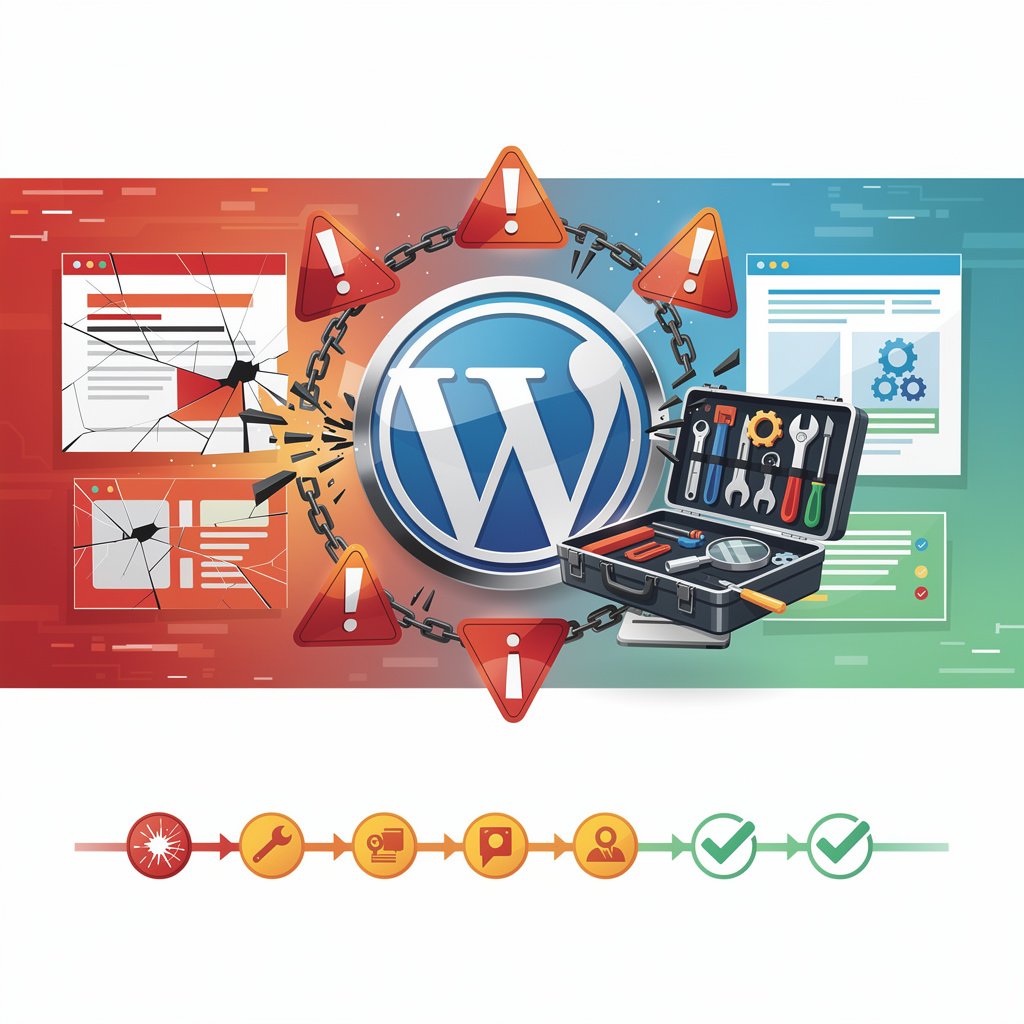
There is nothing quite like the panic of visiting your website and seeing a blank white screen, a database error, or a generic 500 error page. Your business is live on the internet. Every minute it is down, you are losing visitors, customers, and credibility.
Take a breath. The vast majority of WordPress crashes are fixable without touching any code. This guide walks you through a systematic recovery process — starting from the simplest fixes and working toward more advanced ones. Work through these steps in order and you will have your site back up.
Step 1: Identify What Kind of Error You Are Seeing
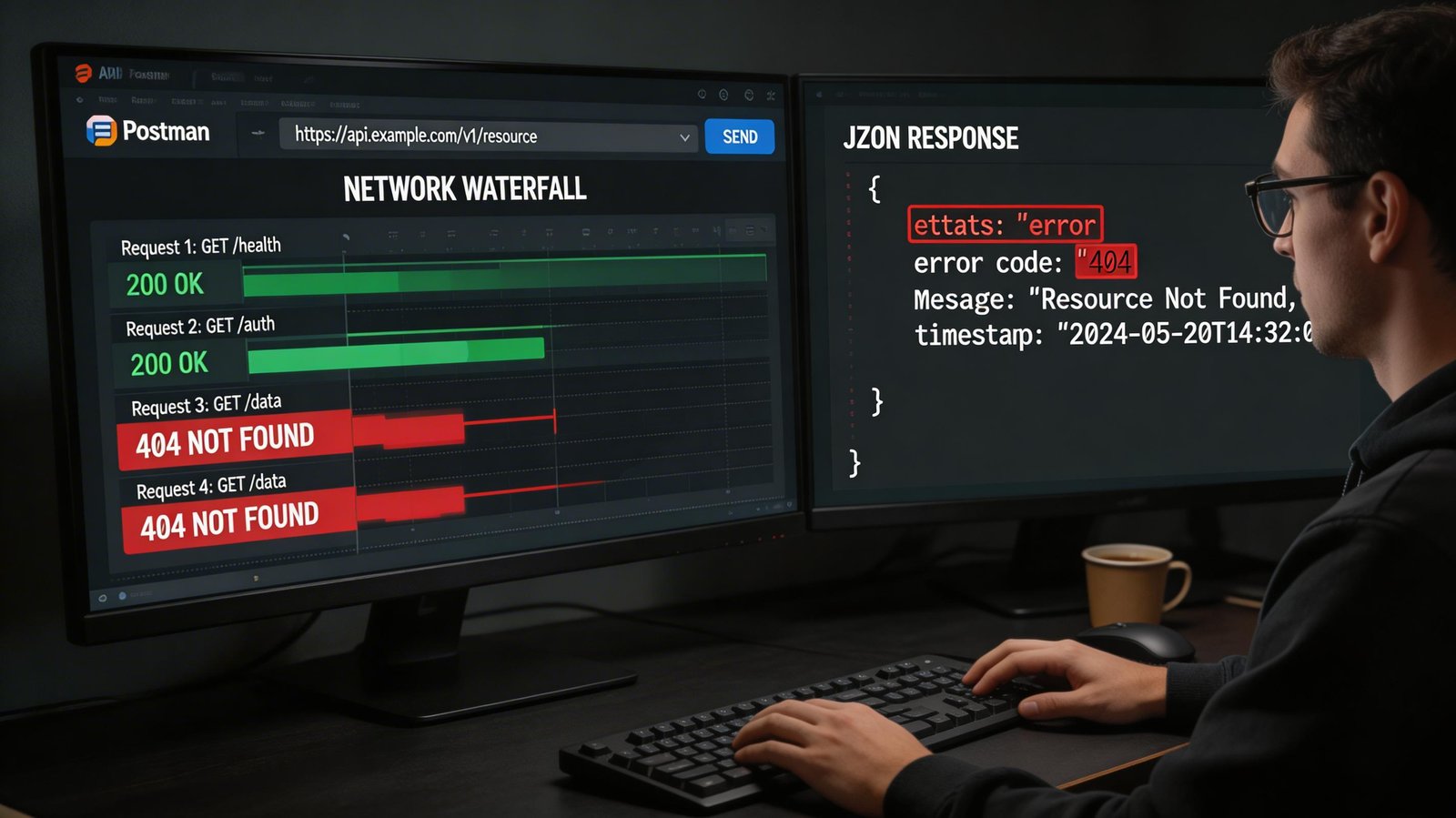
Different error messages point to different problems. The White Screen of Death (WSOD) — a completely blank white page — usually means a PHP error caused by a plugin or theme. A '500 Internal Server Error' can mean a corrupted .htaccess file, a PHP memory limit issue, or a server problem. An 'Error establishing a database connection' means WordPress cannot connect to your database. A '403 Forbidden' error usually means a permissions problem. Once you know which error you have, you can skip to the relevant fix below.
Step 2: Check If Your Hosting Is Up
Before assuming WordPress is broken, verify your hosting server is actually running. Log into your hosting control panel (cPanel, Plesk, etc.) and check for any server status alerts. Visit your hosting provider's status page or social media for outage announcements. If the server itself is down, the fix is out of your hands — contact your host's support immediately.
Fix #1: The White Screen of Death
Disable All Plugins via FTP or File Manager
The most common cause of a white screen is a bad plugin update or a plugin conflict. Since you cannot access your WordPress admin, you need to disable plugins by renaming the folder. Log into your hosting's File Manager or connect via FTP (FileZilla is free). Navigate to public_html/wp-content/. Find the plugins folder and rename it to plugins_disabled. Now try loading your site. If it loads, the problem was a plugin. Rename the folder back to plugins, then deactivate all plugins from wp-admin, and reactivate them one by one to find the culprit.
Switch to a Default Theme
If disabling plugins did not fix it, your theme might be the problem. In File Manager, navigate to wp-content/themes/ and rename your active theme folder. WordPress will automatically fall back to its default theme (TwentyTwenty-Something). If your site loads with the default theme, your custom theme has a fatal error — contact the theme developer or restore a backup.
Increase PHP Memory Limit
A white screen can also occur when WordPress runs out of PHP memory. Open your wp-config.php file in File Manager and add this line before the 'That's all' comment: define('WP_MEMORY_LIMIT', '256M'); Save the file and refresh your site.
Fix #2: 500 Internal Server Error
Fix the .htaccess File
A corrupted .htaccess file is a very common cause of 500 errors. Navigate to your root directory (public_html) in File Manager. Find the .htaccess file (you may need to enable 'Show Hidden Files' in File Manager settings). Rename it to .htaccess_old. Now go to your WordPress admin. Go to Settings → Permalinks and click Save Changes — this regenerates a fresh, clean .htaccess file. If you cannot access wp-admin, create a new .htaccess file manually with the standard WordPress content.
Deactivate Plugins
Follow the same plugin deactivation process described in the WSOD fix above. A badly coded plugin can cause 500 errors just as easily as a white screen.
Fix #3: Error Establishing a Database Connection
Check Your Database Credentials
Open wp-config.php in File Manager. Verify the values for DB_NAME, DB_USER, DB_PASSWORD, and DB_HOST match the actual database details in your hosting control panel under MySQL Databases. A hosting migration or a changed password are the most common causes of this error.
Repair the Database
If credentials are correct, your database might be corrupted. Add this line to wp-config.php temporarily: define('WP_ALLOW_REPAIR', true); Then visit yoursite.com/wp-admin/maint/repair.php and click Repair Database. Remove that line from wp-config.php afterward for security.
Fix #4: WordPress Admin Login Not Working
If you are locked out of wp-admin, you can reset your password directly in the database. Go to your hosting control panel, open phpMyAdmin, select your WordPress database, open the wp_users table, find your user, click Edit, and change the user_pass value. Set the Function dropdown for that field to MD5 and enter your new password. Save the change and try logging in again.
If Nothing Works: Restore from Backup
This is why backups are non-negotiable. If you cannot identify and fix the problem, restoring from a recent backup is always the safest option. Most good hosts (SiteGround, Kinsta, WP Engine) offer one-click backup restoration. UpdraftPlus is an excellent backup plugin for WordPress. If you do not have a backup, contact your hosting provider — they often keep server-level backups even if you did not set them up yourself.
Preventing Future Crashes
Always update plugins and themes one at a time, never all at once. Set up daily automatic backups with UpdraftPlus to a remote location like Google Drive or Dropbox. Use a staging environment to test plugin updates before applying them to your live site. Set up uptime monitoring with UptimeRobot (free) to get an email or SMS the moment your site goes down, so you know before your visitors do.
Conclusion
A downed WordPress site is stressful, but it is rarely catastrophic. Work through the steps systematically: identify the error type, check your hosting, try the relevant fixes in order, and restore from backup if necessary. Most importantly, build your safety net before disaster strikes — regular backups and uptime monitoring give you the ability to recover quickly from almost anything.