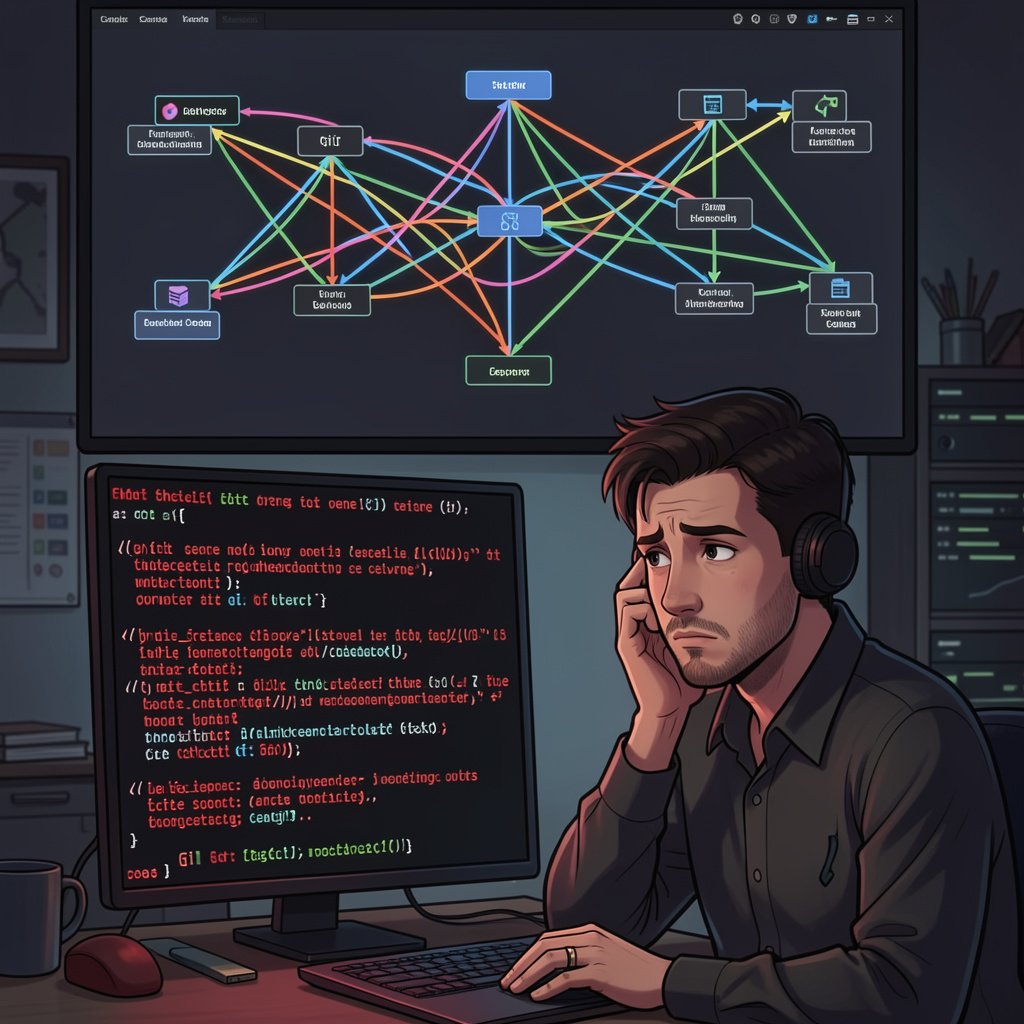
Learning Git feels essential — until it spits out an error you have never seen before and you have no idea what just happened. The frustrating thing about Git errors is that they are often cryptic, and a wrong command can seem to make things worse. Many beginners give up at this stage.
This guide covers the specific Git errors that most commonly derail beginners, explains what each one actually means in plain English, and gives you the exact commands to fix each one. Understanding these will take you from 'terrified of Git' to 'comfortable with Git' faster than any tutorial.
Before Anything: How to Check Git Status
Before running any fix command, always run git status first. This command tells you the current state of your repository — which files are modified, which are staged, which branch you are on, and whether you are ahead or behind a remote branch. git status is your compass. Get in the habit of running it constantly.
Error 1: 'fatal: not a git repository'
You ran a git command in a folder that is not a Git repository. The fix is either to navigate to the correct folder using cd (the project folder where you ran git init or cloned a repo) or to initialize Git in your current folder with git init. Run git status afterward to confirm you are in the right place.
Error 2: Push Rejected — Remote Contains Work You Do Not Have
You tried to git push but got an error saying the remote has commits that you do not have locally. This happens when someone else pushed changes to the same branch since your last git pull. The fix is to run git pull --rebase origin main (or your branch name). This downloads the new remote commits and replays your local commits on top of them. Then run git push again. If git pull causes merge conflicts, see Error 4 below.
Error 3: GitHub Authentication Failed
Since August 2021, GitHub no longer accepts password authentication for command-line operations. You must use a Personal Access Token (PAT) or SSH key. To set up a PAT: go to GitHub → Settings → Developer Settings → Personal Access Tokens → Generate New Token. Give it repo permissions and copy the token. When Git asks for a password, paste the token. To avoid entering it every time, store it in Git's credential helper: git config --global credential.helper store.
Error 4: Merge Conflict
A merge conflict happens when two people edited the same line of the same file differently. Git cannot automatically choose which version to keep, so it marks the conflict in the file and asks you to resolve it manually. Open the conflicted file in your code editor. You will see conflict markers: HEAD is your version, the section after the === is the incoming version. Delete the markers and keep the correct content (sometimes yours, sometimes theirs, sometimes a combination of both). After editing all conflicts, run git add . to mark them resolved, then git commit to complete the merge.
Error 5: Detached HEAD State
You ran git checkout on a specific commit hash (like git checkout a3b4c5d) and now Git says 'HEAD detached.' This is not as scary as it sounds. It means you are viewing a past snapshot of the code without being on any branch. Any commits you make here are not attached to any branch and can be lost. To get back to safety: git checkout main (or your branch name). If you made commits in the detached state that you want to keep, first create a branch to preserve them: git checkout -b save-my-work before switching back.
Error 6: 'Your local changes would be overwritten'
You tried to switch branches or pull, and Git refuses because you have unsaved local changes that conflict. Your options: Option A — Stash your changes temporarily: git stash, then do whatever operation you need, then run git stash pop to restore your changes. Option B — Commit your changes: git add . then git commit -m 'WIP' to save your work, then proceed. Option C — Discard your changes (permanent!): git checkout -- . to throw away all local modifications.
Error 7: Accidental Commit to Wrong Branch
You made commits on main that should have been on a feature branch. Fix: First, create the correct branch at the current state: git checkout -b correct-branch. Then switch back to main: git checkout main. Finally, reset main back to where it was before your commits: git reset --hard HEAD~1 (for one commit back) or git reset --hard HEAD~3 (for three commits back). Your commits now live only on correct-branch.
Error 8: How to Undo the Last Commit
There are two ways to undo a commit depending on whether you have pushed it yet. If not pushed yet: git reset --soft HEAD~1 undoes the commit but keeps your changes staged. git reset --hard HEAD~1 undoes the commit and discards all changes permanently. If already pushed to GitHub: Use git revert HEAD which creates a new commit that reverses the previous one. Never use git reset --hard on commits already pushed to a shared repository — it will cause problems for everyone else.
Error 9: Cannot Switch Branches — Untracked Files
Git refuses to switch branches because doing so would overwrite untracked files in the target branch. Add those files to .gitignore if they should not be tracked, or git add and commit them if they should be part of the project.
Essential Git Commands Reference
git status — check current state. git log --oneline — see commit history compactly. git diff — see unstaged changes. git stash — temporarily save changes. git stash pop — restore stashed changes. git branch -a — list all branches. git checkout -b new-branch — create and switch to a new branch. git fetch origin — download remote changes without merging. git pull — fetch and merge remote changes.
Conclusion
Git errors are intimidating largely because the messages are designed for experienced developers, not beginners. But every error has a logical cause and a clear fix. The key habits that will save you: run git status constantly, commit early and often in small chunks, always work on feature branches rather than main, and never panic — Git preserves almost everything and very few mistakes are truly irreversible.
https://techmkit.com/blog/why-is-my-website-so-slow-how-to-actually-fix-them
https://techmkit.com/blog/flexbox-vs-grid-stop-guessing-know-which-one-to-use
https://techmkit.com/blog/12-common-javascript-errors-causes-fixes-techmkit