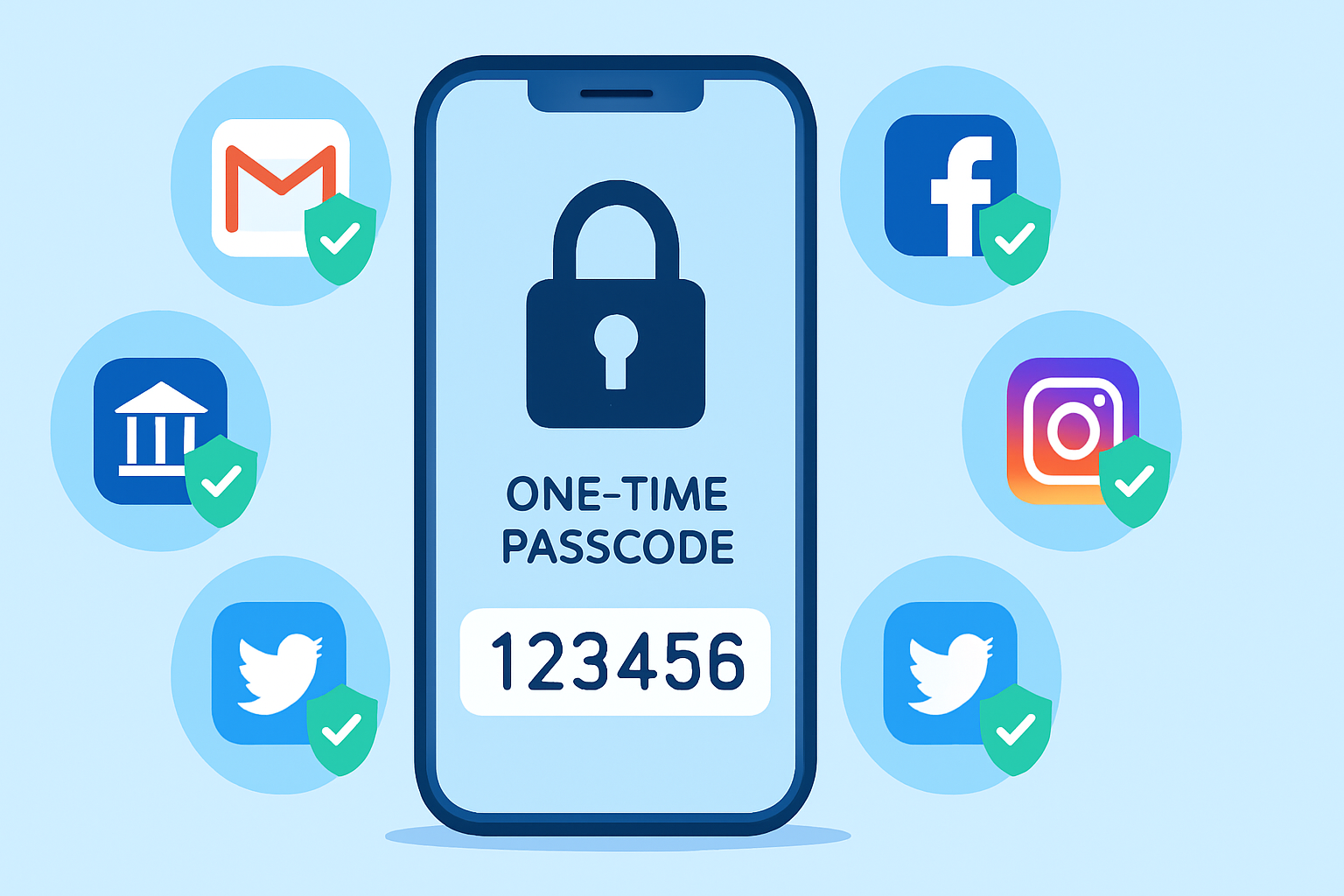
Imagine your password as the front door key to your house. Now imagine someone duplicates that key without you knowing. With two-factor authentication (2FA), even with a perfect copy of your key, they still cannot get in without also having a secret code that only you receive in real time. That is the essence of 2FA — and it is the single most impactful security improvement you can make to any online account today.
Research from Google found that enabling 2FA blocks 99.9% of automated account takeover attempts. Yet a large percentage of internet users still have not enabled it on their most important accounts. This guide changes that. We cover what 2FA is, which types are most secure, and exactly how to turn it on for every major platform.
Understanding the Types of Two-Factor Authentication
SMS/Text Message Codes
A one-time code is sent to your phone via text message when you log in. While far better than no 2FA at all, SMS-based 2FA has a significant weakness: SIM swapping attacks, where a criminal convinces your carrier to transfer your phone number to their SIM card. Use it if it's the only option, but upgrade to an authenticator app whenever possible.
Authenticator Apps (Recommended)
Apps like Google Authenticator, Microsoft Authenticator, and Authy generate time-based one-time passwords (TOTP) that refresh every 30 seconds. These codes are generated locally on your device and do not rely on your phone number, making them immune to SIM swapping. This is the recommended 2FA method for most users.
Hardware Security Keys (Most Secure)
Physical devices like YubiKey plug into your computer's USB port (or tap via NFC on a phone) to verify your identity. They are the most phishing-resistant form of 2FA because they cryptographically verify the site's authenticity before working — a fake login site will never receive confirmation from a hardware key. Highly recommended for high-value accounts.
Push Notifications
Some services send a notification to your phone asking you to approve or deny a login attempt. This is convenient but vulnerable to "MFA fatigue" attacks, where attackers flood you with approval requests hoping you eventually click approve by accident. Be alert and never approve a login request you did not initiate.
How to Set Up 2FA: Platform-by-Platform Guide
Google / Gmail
Go to myaccount.google.com.
Click "Security" in the left sidebar.
Under "How you sign in to Google," click "2-Step Verification."
Click "Get started" and follow the prompts.
Choose your preferred method: the Google prompt on your phone, an authenticator app (highly recommended), or a security key.
Facebook / Instagram / Meta
Facebook: Settings & Privacy > Settings > Security and Login > Two-Factor Authentication > Edit.
Instagram: Profile > Menu > Settings and Privacy > Account Center > Password and Security > Two-factor authentication.
Choose an authenticator app for strongest protection.
Scan the QR code displayed with your authenticator app.
Twitter / X
Go to Settings > Security and account access > Security > Two-factor authentication.
Note: Free accounts are limited to SMS 2FA; X Premium subscribers can use authenticator apps or security keys.
For the authenticator app option, scan the QR code with your chosen app.
Microsoft / Outlook / Xbox
Go to account.microsoft.com.
Click "Security" > "Advanced security options."
Under "Two-step verification," click "Set up two-step verification."
Download Microsoft Authenticator for the best experience, though third-party TOTP apps also work.
Amazon
Go to Account & Lists > Account > Login & Security.
Find "Two-Step Verification (2SV)" and click "Edit."
Click "Get Started" and choose between an authenticator app or a phone number.
Scan the QR code with your authenticator app to complete setup.
Apple ID
Go to appleid.apple.com or Settings on iPhone/iPad.
Tap your name > Sign-In and Security > Two-Factor Authentication.
Follow the prompts to add a trusted phone number and verify your identity.
Apple sends codes via SMS or displays them on trusted devices.
Choosing and Setting Up an Authenticator App
For most users, Authy is the best choice because it backs up your 2FA tokens to the cloud (encrypted), meaning you do not lose access if your phone is lost or broken. Google Authenticator is also excellent but only recently added backup functionality. Microsoft Authenticator works great within the Microsoft ecosystem. All three are free.
What to Do If You Lose Your Phone (Backup Codes)
Every platform that offers 2FA also provides backup codes — a set of one-time-use codes you can use if you lose your authenticator device. When you set up 2FA, download or write down these codes and store them somewhere safe (physically, not just on your phone). A locked drawer, a safe, or a secure notes app on a device you trust are all good options. Losing your phone without backup codes can permanently lock you out of your accounts.
Final Thoughts
Enabling 2FA on your most important accounts takes about 15 minutes total. The protection it provides is enormous — it has stopped some of the most sophisticated account takeover attempts in the world. Start with your email account (the master key to everything else), then move to banking, social media, and cloud storage. Every account you protect is one less vulnerability in your digital life.
Learn More : https://techmkit.com/blog