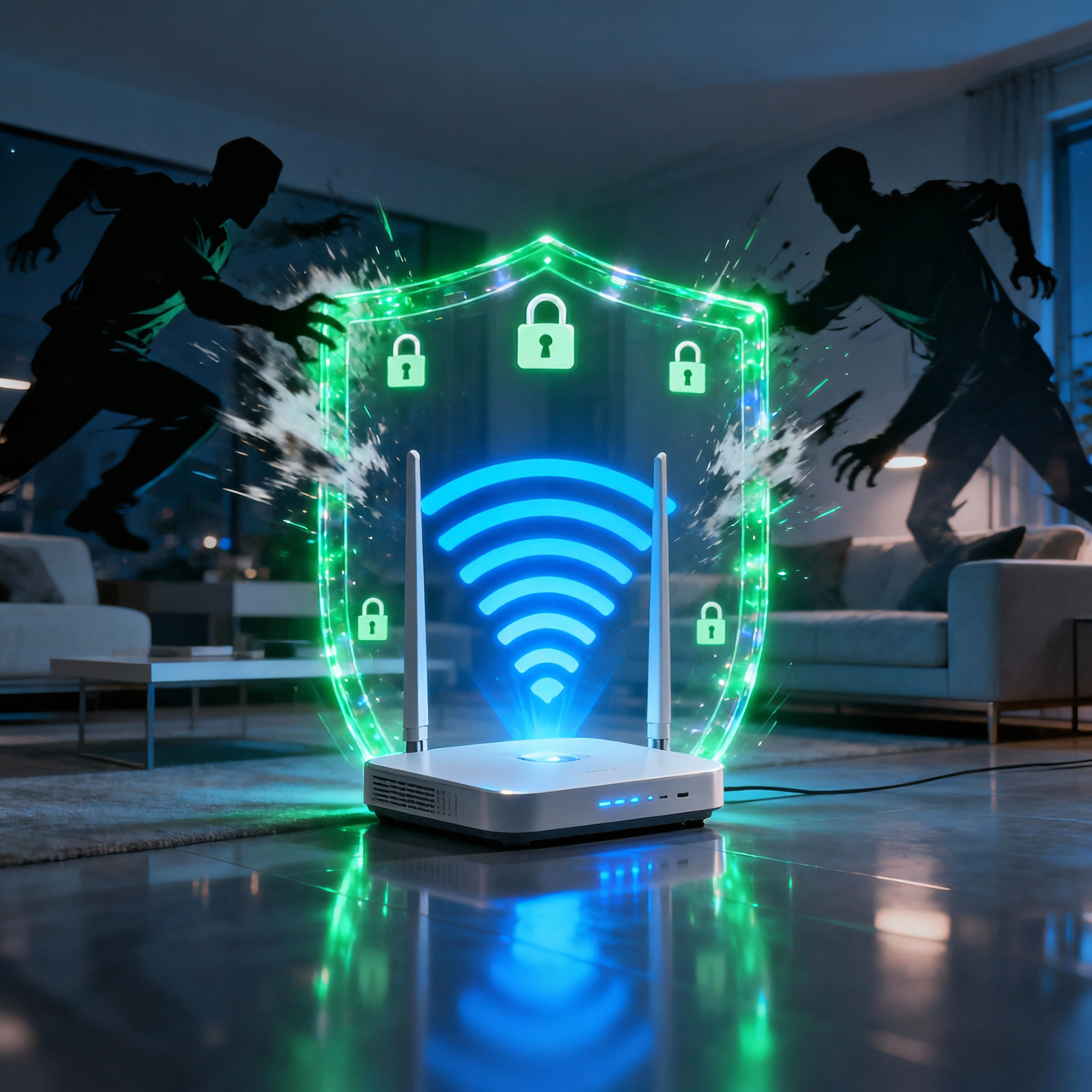
Most people set up their Wi-Fi router once, connect their devices, and never think about it again. That is exactly what cybercriminals count on. Your home router is the gateway to every device on your network — laptops, phones, smart TVs, cameras, doorbells, and baby monitors. If a hacker gains access to your router, they can intercept your internet traffic, steal passwords, access your files, and even control your smart home devices.
The encouraging reality is that securing your home network does not require a computer science degree. A series of straightforward settings changes can dramatically reduce your risk. This guide walks you through every important step.
Start Here: Access Your Router's Admin Panel
To make any changes to your router settings, you need to log into the router's admin interface. Open any browser and type 192.168.1.1 or 192.168.0.1 into the address bar (both are common default addresses). If neither works, check the label on the bottom of your router for the default gateway address. You will be prompted for a username and password — if you have never changed these, check the router label or search online for your model's defaults.
Step 1: Change the Default Router Admin Password
Every router ships with a default admin password. Hackers know every single one of these defaults — they are posted in public databases online. If your router still uses the factory password, anyone who gets onto your network (or who can access your router's web interface) can take full control. Go to the admin settings and change this password to something long and unique. Write it down and store it somewhere safe.
Step 2: Change Your Wi-Fi Network Name (SSID)
The default network name (SSID) often includes your router manufacturer's name (e.g., "Netgear-3845" or "ASUS-Home"). This tells attackers exactly what hardware you have and what vulnerabilities to target. Change it to something that does not identify you or reveal your equipment — but also avoid using your name, address, or apartment number, as that makes it easy to physically locate your router.
Step 3: Use WPA3 or WPA2 Encryption — Never WEP or WPA
Wireless encryption protects data traveling between your devices and the router. There are several encryption standards, and choosing the right one matters enormously:
WEP: Completely obsolete. Can be cracked in under 5 minutes. Never use this.
WPA (Original): Significantly better than WEP but still vulnerable to certain attacks.
WPA2: The current standard. Use WPA2-AES if WPA3 is not available.
WPA3: The latest standard, offering the strongest protection available. Use this if your router supports it.
In your router's wireless settings, find the "Security" or "Encryption" option and select WPA3 if available, or WPA2-AES if not. Avoid any option that includes "TKIP" as it is weaker.
Step 4: Create a Strong Wi-Fi Password
Your Wi-Fi password is the lock on your front door. A weak password is like a lock a child could pick. Your Wi-Fi password should be at least 16 characters long and include a mix of letters, numbers, and symbols. Avoid using common words, your name, address, or anything that appears in a dictionary. A passphrase — four or five random words strung together — is both strong and easy to remember.
Step 5: Create a Separate Guest Network
Almost all modern routers allow you to set up a guest Wi-Fi network separate from your main network. When friends visit or contractors come to your home, give them access to the guest network only. This way, they cannot accidentally (or intentionally) access your computers, NAS drives, or smart home devices. More importantly, if any of their devices are already infected with malware, it cannot spread to your main network.
Step 6: Put Your Smart Home Devices on the Guest Network
Smart home devices — TVs, cameras, smart speakers, thermostats, doorbells — are notoriously insecure. Many run outdated firmware with known vulnerabilities. By putting them on your guest network and isolating them from your computers and phones, you limit the damage if one of them is compromised. This network segmentation is one of the most effective security practices available to home users.
Step 7: Disable Remote Management and WPS
Remote management allows you to access your router admin panel from outside your home network — useful but also a significant attack surface. If you do not need it, turn it off. Similarly, Wi-Fi Protected Setup (WPS) was designed to make connecting devices easier, but it has known vulnerabilities that allow attackers to brute-force the PIN and gain network access in hours. Disable WPS in your router settings.
Step 8: Keep Your Router Firmware Updated
Router manufacturers regularly release firmware updates that patch security vulnerabilities. Many routers have an auto-update option — enable it. If yours does not, check the router manufacturer's website every few months and install updates manually. A router running firmware from three years ago likely has multiple known, exploitable vulnerabilities.
Step 9: Enable a Firewall and Use a DNS Filtering Service
Most routers have a built-in firewall — make sure it is enabled. Additionally, consider changing your DNS server from your ISP's default to a security-focused option. Cloudflare's 1.1.1.2 (malware blocking) or Quad9's 9.9.9.9 block connections to known malicious websites at the DNS level, providing an additional layer of protection for all devices on your network.
Step 10: Regularly Audit Connected Devices
Periodically check which devices are connected to your router. In the admin panel, look for a "Connected Devices" or "DHCP Client List" section. If you see a device you do not recognize, investigate. It could be a neighbor hopping on your Wi-Fi, or something more sinister. If you identify an unauthorized device, change your Wi-Fi password immediately, which will disconnect all devices and require them to reconnect with the new password.
Final Thoughts
Securing your home Wi-Fi network takes about an hour of focused effort, and the protection it provides is substantial. In a world where more aspects of our lives — work, banking, medical devices — rely on home internet connections, treating network security as a priority is no longer optional. Run through this checklist today and repeat it every six months to ensure your home network stays locked down.