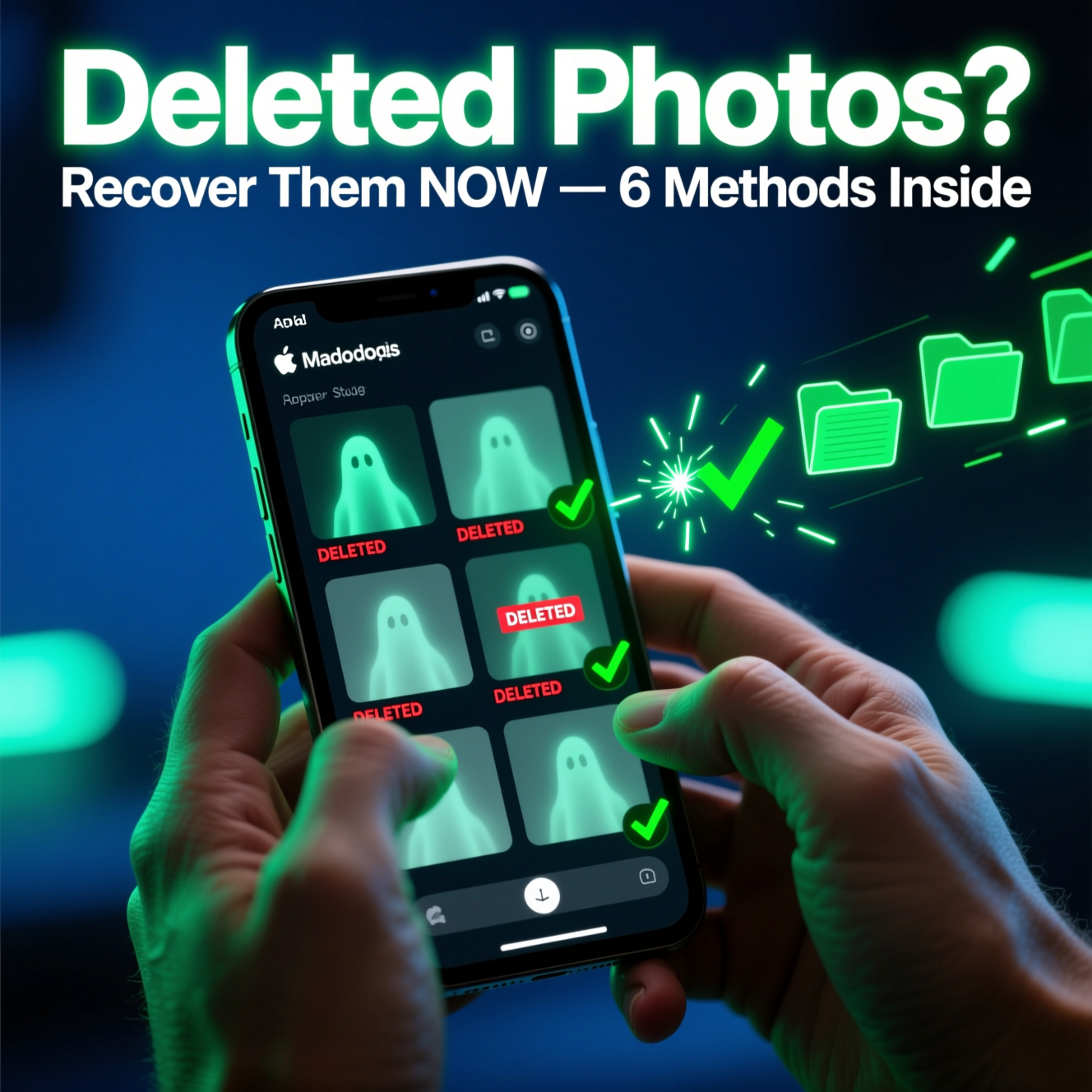
That heart-dropping moment when you realize you have deleted precious photos by accident is something almost every Android user has experienced. Maybe you tapped Delete instead of Edit, or you cleared your gallery during a storage cleanup without realizing certain albums were not backed up.
Before you panic — stop using your phone immediately. The more you use the device after deletion, the higher the chance that the deleted data gets overwritten. Now read these 6 recovery methods, starting from the easiest.
How Android Deletion Works (And Why Recovery Is Possible)
When you delete a photo on Android, the file is not immediately erased from the storage chip. Instead, the system marks that space as "available" for new data. The photo remains on the storage until new data overwrites it. This is why acting fast and stopping phone use maximizes recovery success.
Method 1: Check the Recently Deleted / Trash Folder
Most modern Android gallery apps have a built-in Trash or Recently Deleted folder that holds deleted photos for 30 days before permanent deletion.
Open your Gallery app (Samsung Gallery, Google Photos, or Xiaomi Gallery)
Look for a Trash, Recycle Bin, or Recently Deleted option in the menu
Select the photos you want to restore
Tap Restore
This is the quickest fix. If your photos were deleted within the last 30 days and you have not permanently emptied the trash, they are likely there.
Method 2: Recover from Google Photos
If you have Google Photos with Backup turned on, every photo you have ever taken is likely safe in the cloud.
Open Google Photos
Tap Library > Trash
Photos deleted within 60 days appear here
Long-press to select, then tap Restore
Even if the photo is no longer in the Trash, check your Google Photos Library — if Backup was enabled before deletion, your photos may still be there under All Photos sorted by date.
Method 3: Check Google Drive and Other Cloud Backups
Some Android phones automatically back up photos to Google Drive, Samsung Cloud, OneDrive, or Dropbox. Check all cloud storage services you use:
Google Drive: drive.google.com > Computers or My Drive > Photos
Samsung Cloud: galaxy.store/cloud or Samsung Members app
OneDrive: Check the Camera Backup folder
Dropbox: Check Camera Uploads
Method 4: Use DiskDigger (Android Recovery App — No PC Needed)
DiskDigger is one of the most trusted free photo recovery apps for Android. For basic recovery (on non-rooted phones), it can scan your device's cache and memory for traces of deleted photos.
Download DiskDigger from the Google Play Store
Open the app and tap Start Basic Scan
Select the file types to recover (JPEG, PNG)
Browse the found photos and tap Recover to save them
Note: For deeper recovery (scanning the full internal storage), the app requires root access. However, the basic scan works for many recently deleted photos.
Method 5: Use a PC-Based Recovery Tool
For deeper recovery, connecting your Android to a PC and using dedicated software yields better results.
Recommended tools:
Dr.Fone - Data Recovery (Windows/Mac) — supports most Android devices
EaseUS MobiSaver — user-friendly with a free scan option
Tenorshare UltData for Android
Download and install the tool on your PC
Connect your Android via USB cable
Enable USB Debugging (Settings > Developer Options > USB Debugging)
Follow the on-screen recovery instructions
Preview found photos and select which ones to restore
Method 6: Restore from WhatsApp or Social Media Uploads
If you shared the deleted photo via WhatsApp, Telegram, Facebook, or Instagram before deleting it, you may be able to find a copy:
WhatsApp Media folder: File Manager > Internal Storage > WhatsApp > Media > WhatsApp Images
Telegram: Your Saved Messages or the media folder in File Manager
Facebook: Download your data from Facebook Settings > Your Facebook Information > Download Your Information
Google Messages: Photos sent via SMS/MMS may be in the Messages media folder
Best Practices to Never Lose Photos Again
Always enable Google Photos Backup (Settings > Backup in Google Photos)
Regularly move important photos to Google Drive or an external hard drive
Enable Samsung Cloud Photo Sync if you use a Samsung device
Do not immediately permanently delete photos — let them sit in Trash for 30 days
Use a secondary backup service like Amazon Photos, which offers free unlimited photo storage for Prime members
Conclusion
Recovering deleted photos on Android is absolutely possible in most cases — especially if you act quickly and stop using the phone after deletion. Start with the Trash folder in your gallery app, then check Google Photos. If those fail, a dedicated recovery app or PC tool is your best bet. Set up automatic cloud backup today so this never happens again.