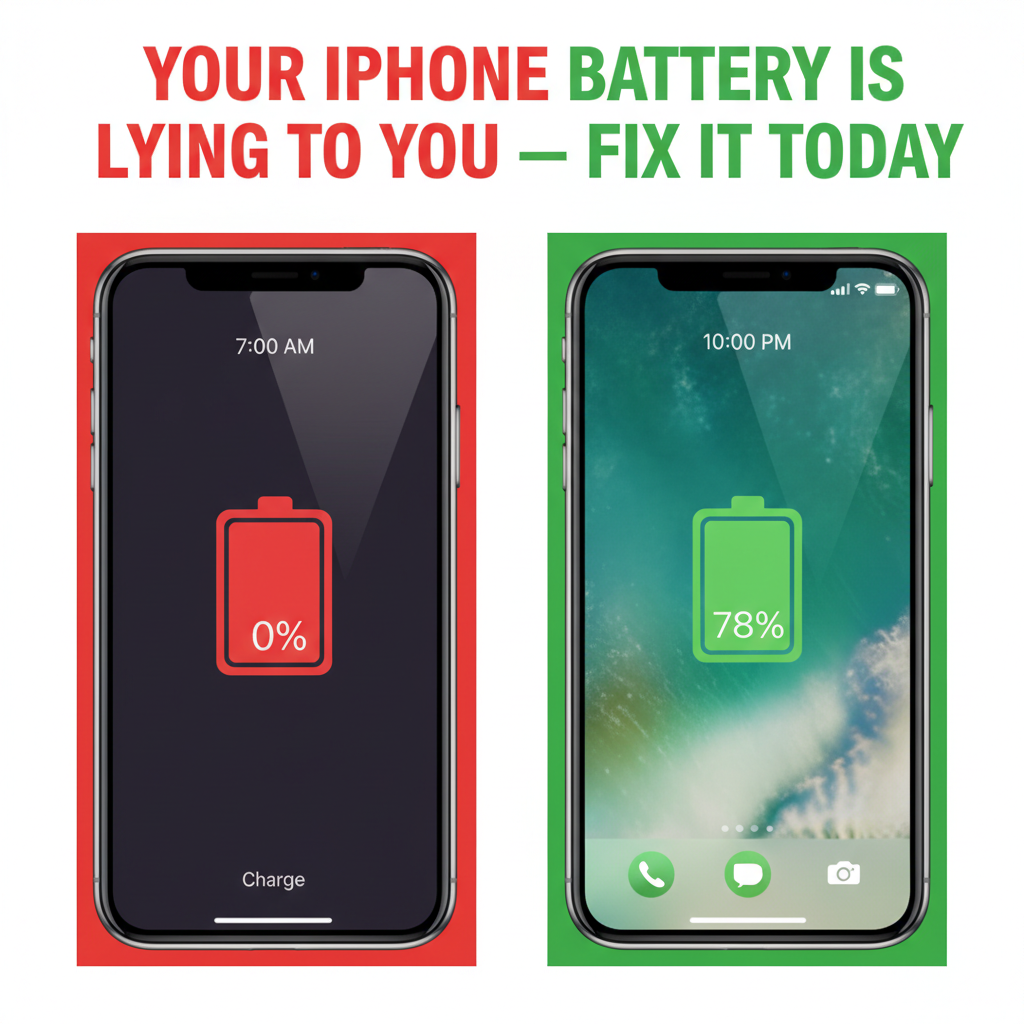
You wake up, take your iPhone off the charger at 100%, and by noon it is already begging for a top-up. Sound familiar? Fast battery drain is one of the most common iPhone complaints — and the frustrating part is that it is not always obvious what is causing it.
Apple's iPhone hardware is excellent, but certain settings, apps, and iOS behaviors can quietly devour your battery without warning. This guide cuts through the noise and gives you 14 real, actionable fixes that work on iPhone 12, 13, 14, 15, and beyond.
Understanding iPhone Battery Drain: The Hidden Causes
Before fixing the problem, you need to know what is actually draining your battery. The most common culprits include:
Background App Refresh running apps even when you are not using them
Location Services constantly pinging GPS for apps that do not need it
Push email and notifications waking your screen dozens of times per hour
A degraded battery with poor health percentage
Screen brightness set too high with always-on display features
iCloud sync running in the background
Buggy iOS updates causing power regression
14 Proven Fixes to Stop iPhone Battery Drain
Fix 1: Check Your Battery Health First
Go to Settings > Battery > Battery Health and Charging. If your Maximum Capacity is below 80%, your battery has significantly degraded and replacement is the most effective fix. Apple offers battery replacement for a reasonable fee.
Fix 2: Turn Off Background App Refresh
This single setting can make a dramatic difference. Background App Refresh allows apps to update their content even when you are not using them — consuming both battery and data.
Go to Settings > General > Background App Refresh
Set it to Off, or selectively disable it for social media, news, and shopping apps
Fix 3: Manage Location Services Ruthlessly
Many apps request "Always On" location access when they only need it while in use — or not at all.
Go to Settings > Privacy and Security > Location Services
For each app, set access to While Using App or Never
Pay special attention to social media, weather, and shopping apps
Fix 4: Enable Low Power Mode When Needed
Low Power Mode reduces background activity, mail fetching, automatic downloads, and some visual effects. Enable it at Settings > Battery > Low Power Mode, or simply ask Siri to turn on Low Power Mode.
Fix 5: Reduce Screen Brightness and Use Auto-Brightness
Your screen is the single largest battery consumer. Lower your brightness in Control Center and make sure Auto-Brightness is on via Settings > Accessibility > Display and Text Size > Auto-Brightness.
Fix 6: Switch from Push Email to Fetch
Push email keeps a constant connection to your mail server, draining battery around the clock. Switch to Fetch or Manual for non-urgent accounts.
Go to Settings > Mail > Accounts > Fetch New Data
Set Push to Off
Set Fetch to Every 15 Minutes or Manually
Fix 7: Identify and Remove Battery-Hogging Apps
Settings > Battery shows you exactly which apps have consumed the most battery in the last 24 hours or 10 days. If a social media app is at 40% usage and you barely used it, something is wrong. Delete or restrict it.
Fix 8: Disable Raise to Wake
Every time you lift your iPhone, the screen lights up. If you pick up your phone frequently, this adds up. Disable it at Settings > Display and Brightness > Raise to Wake.
Fix 9: Turn Off Widgets on Lock Screen and Home Screen
Live widgets (weather, stocks, fitness rings) refresh data constantly. Remove widgets you do not actually glance at regularly. Long-press your Home Screen > Edit > remove unused widgets.
Fix 10: Disable Unnecessary Notifications
Every notification lights up your screen. Go to Settings > Notifications and disable alerts for apps that send non-essential notifications. This prevents unnecessary screen activations throughout the day.
Fix 11: Update iOS to the Latest Version
Apple frequently releases iOS updates that include battery-life improvements and bug fixes for power regression issues. Go to Settings > General > Software Update and install the latest available version.
Fix 12: Reset All Settings if Nothing Else Works
Corrupt settings or misconfigured options can cause abnormal battery drain. Go to Settings > General > Transfer or Reset iPhone > Reset > Reset All Settings. This resets preferences but does not delete your data.
Fix 13: Disable iCloud Photo Library Syncing Over Cellular
If you have thousands of photos syncing over cellular in the background, your battery will drain fast. Go to Settings > Photos and disable Cellular Data, or set it to Unlimited Updates only when on Wi-Fi.
Fix 14: Use Optimized Battery Charging
Apple's Optimized Battery Charging feature learns your daily charging patterns and delays charging past 80% until you actually need it, reducing battery wear over time. Ensure it is enabled at Settings > Battery > Battery Health and Charging > Optimized Battery Charging.
How to Tell If You Need a Battery Replacement
Replace your iPhone battery if:
Battery Health is below 80%
Your iPhone shuts down randomly even with charge remaining
The phone runs noticeably hotter than usual under light use
You are charging more than twice per day on normal usage
Final Thoughts
Fast iPhone battery drain is annoying, but it is rarely the phone's fault — it is almost always a settings or software issue that you can fix in minutes. Work through the fixes above from top to bottom. Most users see significant improvement after just the first five changes. If your battery health is already below 80%, a replacement will be the single biggest improvement you can make.
Another Blog.....................