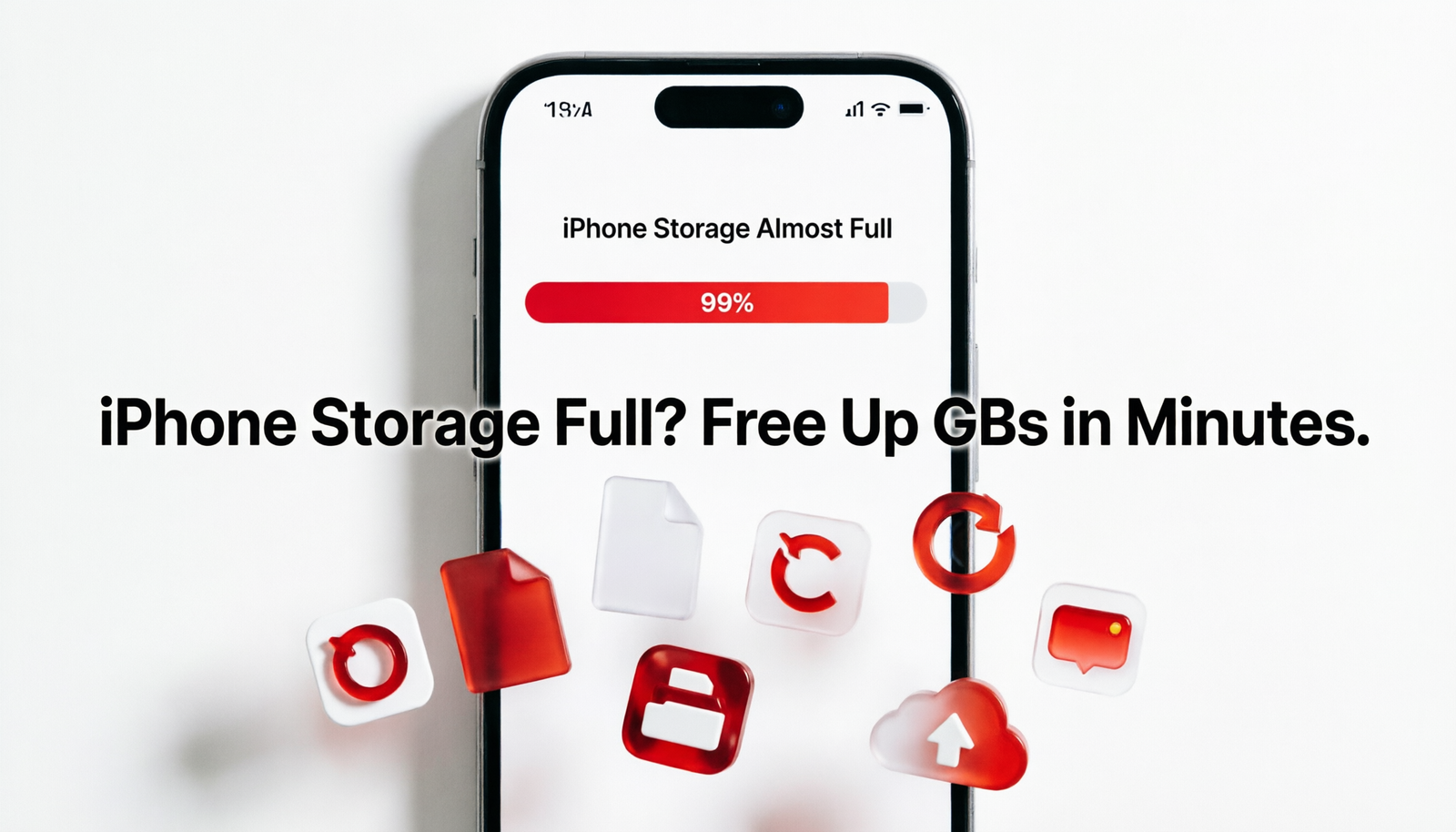
The notification "iPhone Storage Almost Full" is never welcome, especially when you are trying to take a photo at an important moment or download a new app. With iPhones ranging from 64GB to 1TB, storage management varies widely — but every iPhone user hits this wall at some point.
The good news is that there is almost always significant storage to reclaim without deleting anything truly important. These 12 methods target the biggest space wasters on iPhone, from hidden caches to unnecessarily stored media.
Step 1: See What Is Actually Taking Up Space
Before blindly deleting things, check Settings > General > iPhone Storage. You will see a color-coded bar showing categories (Apps, Photos, Messages, etc.) and a list of apps sorted by size. This shows you exactly where to focus your effort.
12 Methods to Free Up iPhone Storage
Method 1: Enable iCloud Photos and Optimize Storage
This is the single most impactful change for most users. With Optimize iPhone Storage enabled, full-resolution photos are stored in iCloud while smaller optimized versions stay on your device, freeing enormous amounts of space.
Settings > [Your Name] > iCloud > Photos
Turn on iCloud Photos
Select Optimize iPhone Storage
This can free anywhere from 5GB to 50GB depending on how many photos and videos you have.
Method 2: Offload Unused Apps
Offloading removes the app itself but keeps its data. If you decide to reinstall the app later, your data is preserved.
Settings > General > iPhone Storage
Tap any app you rarely use
Tap Offload App
Alternatively, enable automatic offloading: Settings > App Store > Offload Unused Apps (toggle on).
Method 3: Delete Large Attachments in Messages
Text messages accumulate gigabytes of photos, videos, GIFs, and voice messages over time.
Settings > General > iPhone Storage > Messages
Tap Review Large Attachments
Sort by size and delete large video and audio attachments you no longer need
Method 4: Clear Browser Cache
Safari accumulates website data over time. Go to Settings > Safari > Clear History and Website Data. For Chrome, open the Chrome app > three-dot menu > Settings > Privacy > Clear Browsing Data.
Method 5: Delete Offline Content from Streaming Apps
Music, podcasts, Netflix shows, Spotify playlists, and Apple TV downloads can occupy many gigabytes.
Spotify: Settings > Storage > Delete Cache
Netflix: Downloads tab > swipe left on any downloaded show to delete
Apple Podcasts: Settings > General > iPhone Storage > Podcasts > tap individual episodes
Apple Music: go to Library > Downloaded, swipe left to remove offline tracks
Method 6: Use Files App to Find and Delete Large Files
Open the Files app > Browse > On My iPhone. Sort by Size (tap the three-dot menu > Sort by Size). Identify and delete large files like old video recordings, downloaded PDFs, or project files you no longer need.
Method 7: Clear WhatsApp Media
WhatsApp storage is often massively underestimated. Open WhatsApp > Settings > Storage and Data > Manage Storage. Sort by Largest — usually group chats have accumulated hundreds of megabytes of photos and videos you never chose to save.
Method 8: Delete Duplicate Photos
iOS 16 and later includes a built-in Duplicates album. Go to Photos > Albums > Duplicates (scroll down to Utilities). Tap Merge to keep the highest quality version and delete the duplicate.
Method 9: Use iCloud Drive Instead of Local Storage
Move documents from your device to iCloud Drive. Open Files > On My iPhone, select files, and move them to iCloud Drive. They will be accessible on any Apple device but no longer take up local storage.
Method 10: Delete and Reinstall Large Apps
Apps sometimes accumulate enormous amounts of cached and temporary data over time. Deleting and reinstalling an app resets it to factory size. Note: you will need to log in again. This is particularly effective for social media apps, browsers, and navigation apps.
Method 11: Turn Off HDR Video Recording
Cinematic mode, 4K 60fps, and HDR video create extremely large files. Go to Settings > Camera and reduce video quality for daily recordings. Set to 1080p HD at 30fps for a significant size reduction.
Method 12: Review and Delete Old Voicemails
Open the Phone app > Voicemail, delete old voicemails, and then go to Deleted Messages (if available) and delete permanently. Old voicemails are often forgotten and accumulate over years.
After Freeing Up Storage: Keep It Under Control
Set iCloud Photos to Optimize storage permanently
Enable automatic app offloading in App Store settings
Regularly clear WhatsApp and Telegram media
Check iPhone Storage monthly and proactively offload or delete
Conclusion
iPhone storage fills up faster than most people expect, primarily because of photos, videos, messages, and offline media. Enabling iCloud Photos Optimization and offloading unused apps together often frees up 10–30GB instantly. Work through the remaining methods to maximize available storage and enjoy a faster, roomier iPhone experience.
Visit Our Blog Page..........https://techmkit.com/blog