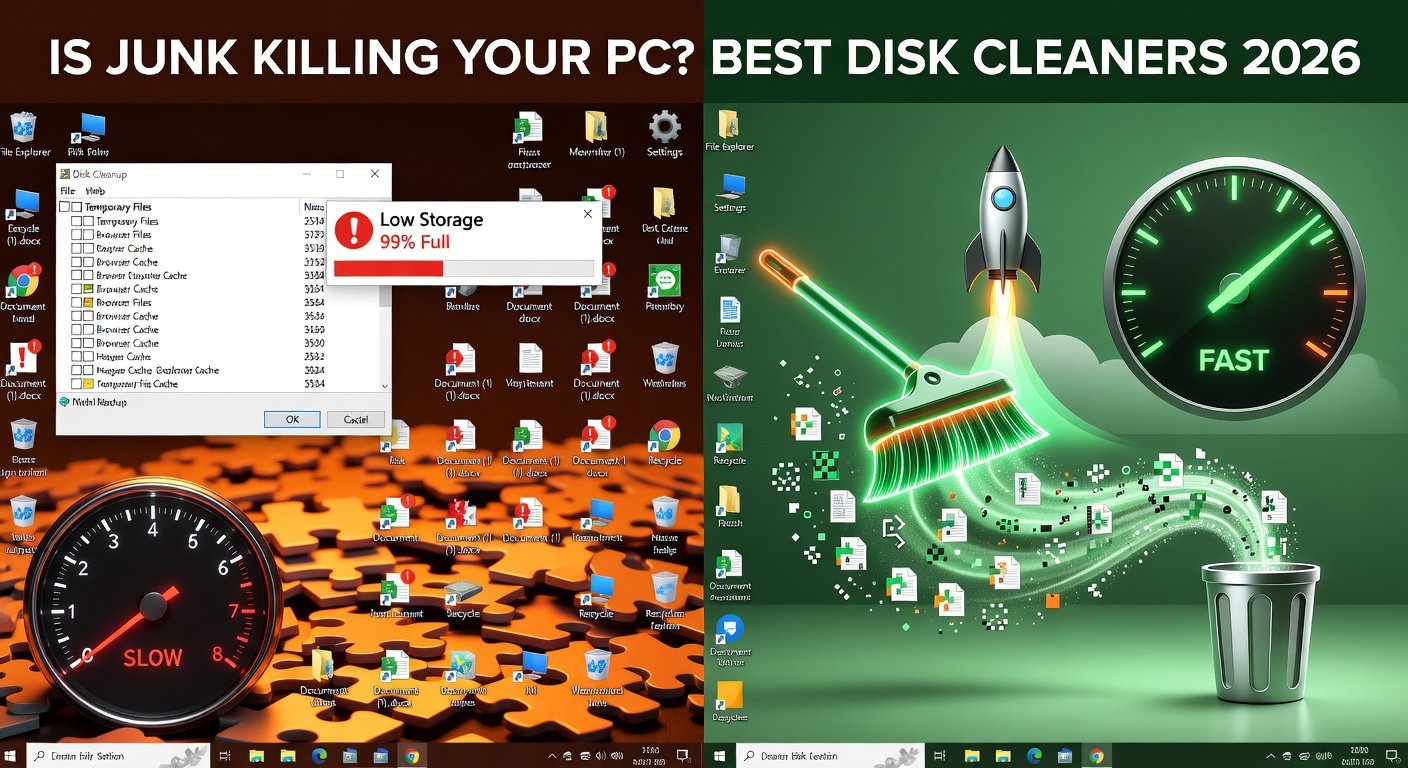
The PC cleaning software market is riddled with scams. Hundreds of 'PC optimizer' programs make dramatic promises — 'Speed Up Your PC By 300%!' — while delivering nothing except a lighter wallet and potentially more problems than you started with. Many fake optimizers are actually malware disguised as helpful utilities.
This review cuts through the noise and identifies the legitimate disk cleanup tools that genuinely free up storage space, remove junk files, and improve PC performance — without shady practices or misleading scare tactics.
What Legitimate Disk Cleanup Can and Cannot Do
Legitimate benefits of disk cleanup software:
Remove temporary files (Windows temp folder, browser caches, thumbnail caches)
Empty the Recycle Bin
Remove leftover files from software uninstallers
Clear Windows Update cache
Remove browser history and cookies
Things PC cleaners CANNOT do that they often falsely claim:
Clean the Windows registry to 'speed up' your PC — registry cleaning provides no measurable performance benefit and can cause instability
Fix system errors by 'optimizing' system files
Improve internet speed
Dramatically speed up a slow PC (hardware limitations require hardware solutions)
1. Windows Built-In Disk Cleanup — Best Starting Point (Free)
Before downloading any third-party software, use Windows' own tools:
Disk Cleanup (Classic)
Search for Disk Cleanup in the Start menu
Select your C: drive and click OK
Check all categories of junk files
Click Clean up system files for additional Windows Update cleanup options
Click OK and Delete Files
This built-in tool is safe, effective, and requires no installation. It typically recovers 1–20GB on systems that have never been cleaned.
Storage Sense
Settings > System > Storage > Configure Storage Sense
Enable Storage Sense for automatic periodic cleanup
Set it to clean temporary files and empty the Recycle Bin automatically
2. BleachBit — Best Free Open-Source Disk Cleaner
Platform: Windows, Linux (free, open-source)
BleachBit is the safe, transparent, and powerful free alternative to questionable PC cleaners. It is open-source (anyone can inspect the code), does not include bundled software, and does not try to scare you into buying premium.
Key Features
Cleans 70+ applications: browsers, Office suites, media players
Secure file deletion with DoD-level overwriting
Free disk space wipe to prevent file recovery
Command-line support for scripted cleanup
Portable version — no installation required
BleachBit's focus is privacy and space recovery, not registry cleaning or fake optimization. It is the preferred tool for users who want transparent, legitimate disk cleaning.
3. CCleaner Free — Best User-Friendly Disk Cleaner
Platform: Windows, Mac (free and paid)
CCleaner is the most popular disk cleaning utility worldwide. Used thoughtfully, it is effective. However, users need to know what to use and what to avoid:
What Is Safe and Useful in CCleaner
Custom Clean: removes browser caches, temp files, Windows logs
Uninstaller: more complete program removal than Windows Add/Remove Programs
Startup Manager: view and disable startup programs
What to Avoid:
The Registry Cleaner in CCleaner should not be used. As Microsoft officially states, registry cleaning provides no performance benefit and can cause system instability. Disable this module entirely.
Note: Piriform (CCleaner's developer) was acquired by Avast/NortonLifeLock. The software has been criticized for aggressive upselling and in 2017 suffered a malware injection incident (which was quickly resolved). Use with awareness of these history items.
4. TreeSize Free — Best for Visualizing What Is Eating Your Storage
Platform: Windows (free and paid)
TreeSize is not a cleaner — it is a storage visualization tool that shows you exactly where your disk space is going. This is often more valuable than any cleaner, because you might discover that a single log folder or old game backup is consuming 50GB.
Key Features
Visual treemap of all folders and files by size
Drill down into any directory to find space hogs
Filter by file type, age, or size
Export reports for documentation
Once you see what is taking space, you can make informed decisions about what to delete — rather than letting an automated tool decide.
5. WinDirStat — Alternative Free Storage Visualizer
WinDirStat (Windows Directory Statistics) creates a colorful block map showing every file on your drive, sized proportionally. Files that look enormous in the visualization are the ones consuming the most space. It is completely free, open-source, and has been a staple in technicians' toolkits for two decades.
The Right Disk Cleanup Workflow
Run Windows Disk Cleanup first (catches the safest, largest junk files)
Use TreeSize or WinDirStat to identify your biggest space consumers
Manually delete specific large files you identify (old downloads, unused games, video projects)
Use BleachBit for browser cache and application log cleanup
Use CCleaner's startup manager to disable programs that slow boot time
Avoid registry cleaners entirely — the risk/benefit ratio does not favor them
When a PC Cleaner Won't Help
If your PC is slow and has plenty of free space, disk cleanup is not the solution. Investigate:
Too many startup programs — disable via Task Manager > Startup tab
Malware consuming CPU — scan with Malwarebytes
Outdated drivers — update via Device Manager
Insufficient RAM — upgrade if consistently at 90%+ usage
HDD rather than SSD — upgrading to an SSD is the single biggest performance improvement for most older PCs
Conclusion
Start with Windows' own Disk Cleanup and Storage Sense — they are free, safe, and effective. For deeper cleaning, Bleach Bit provides transparent, no-nonsense storage recovery. Use TreeSize to understand where your space actually goes before deleting anything. And avoid registry cleaners regardless of what any software promises — they do more harm than good.
Visit Our Site : https://techmkit.com/blog